Publishing 360° panoramas in Google Maps is possible, but the process is often misunderstood.
Google does not provide a single unified tool for all types of 360 content. Instead, there are three different approaches:
- Photo Sphere — a single 360° image
- Street View Studio — route creation from 360° video
- Connected Photo Spheres — indoor or outdoor tours published through compatible third-party tools or the Street View Publish API
Understanding the difference is key.
Quick Answer
- Can you upload a 360 photo to Google Maps? → Yes
- Will it appear in Street View? → It can, subject to Google’s processing and content requirements.
- Can you connect panoramas into a tour on Google Maps? → Yes, using a compatible third-party publishing tool or the Street View Publish API.
- Is Street View Studio suitable for interiors? → No, it converts outdoor 360° videos with GPS data.
Option 1: Upload a 360 Photo (Photo Sphere)
Google fully supports spherical panoramas (Photo Spheres).
Supported sources:
- 360 cameras (Insta360, Ricoh Theta)
- DSLR + pano head
- stitched images (PTGui, Hugin, etc.)
How to upload
- Open Google Maps
- Find your location
- Click “Add a photo”
- Upload your 360 image
The file must meet Google’s image and content requirements. After processing, check how it appears in Google Maps.
Photo Requirements
- Format: JPG
- Aspect ratio: 2:1
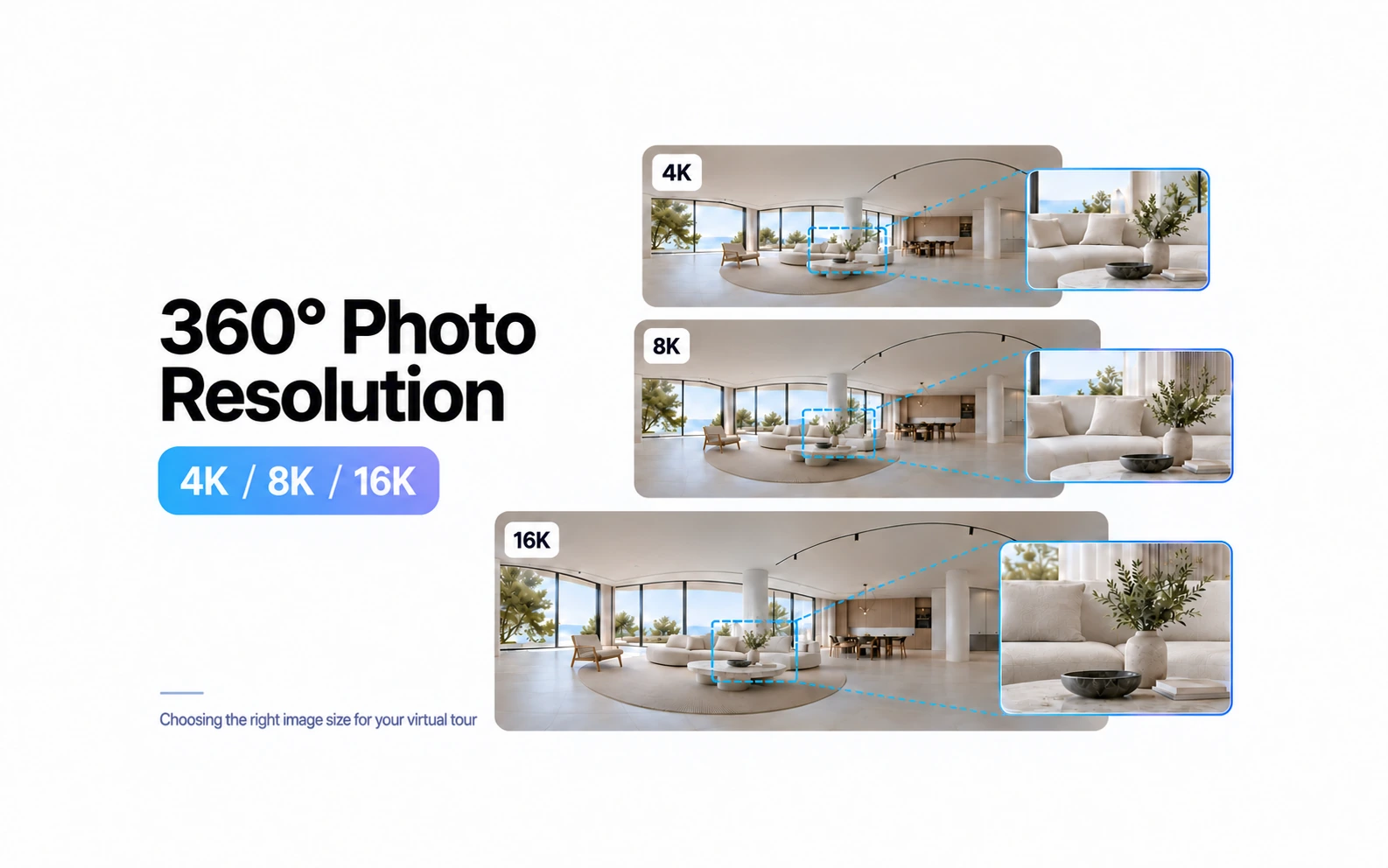
- Minimum resolution: ~3840×1920
- File size: up to 75 MB
- No visible stitching errors
- Straight horizon
Important Limitation
A Photo Sphere is one 360° image, but multiple images can be connected into indoor or outdoor tours on Google Maps.
- Use a compatible third-party publishing app to define the connections.
- Developers can use the Street View Publish API to publish positions, orientations, and connections.
- Uploading separate images is not the same as publishing a deliberately connected collection.
After you create and publish the connections:
- allow up to four days for processing, according to Google’s guidance
- check the result on Google Maps and consult the publishing tool’s instructions if connections are missing
Option 2: Street View Studio (For Routes Only)
Street View Studio is used to publish Street View routes.
Supported inputs:
- 360 video (.mp4, .mov)
- GPS metadata or GPX file
- moving capture (car, walking, cycling)
Workflow
- Upload your video
- Review GPS positioning
- Submit for processing
- Google converts it into a Street View route
Key Limitation of Street View Studio
- Not suitable for interiors
- Requires accurate GPS data
- Indoor recordings usually cannot provide sufficiently accurate GPS data
Why This Causes Confusion
Google Maps and Street View are part of the same ecosystem, but:
- Photo Spheres → individual 360° images that can be connected through publishing tools
- Street View Studio → a route generated from video
- A customizable, separately hosted tour → a platform such as Space Tour
A connected Street View collection and a separately hosted Space Tour project are different publishing formats. Publishing connected panoramas on Google Maps is different from hosting a Space Tour project with its own interface.
Common Issues
In practice, users often face:
- panoramas not displaying as expected
- scenes not connecting
- lack of navigation
- limited control over user experience
Check image requirements, capture quality, positioning, connection settings, processing status, and the publishing tool’s instructions before deciding why a panorama or connection is missing.
Final Thoughts
If you need to upload a single 360° image, Google Maps works well.
If you want to publish outdoor routes, Street View Studio is the right tool.
For a connected panorama tour on Google Maps, use compatible publishing tools. For a presentation with your own interface, consider a separately hosted tour.
If You Need a Full Virtual Tour
Google supports publishing:
- individual Photo Spheres or connected indoor and outdoor collections
- or an automated route (video-based)
For an independent presentation, consider these needs:
- navigation tailored to your project
- custom UI or branding
- a tour package to host separately, with your own interface
- flexible user experience
Choose Google Maps to make your panoramas accessible there. Choose Space Tour for a separately hosted 360° presentation with your own navigation, design, and branding. The publishing format depends on your project.